When to Upgrade Your CPUThe reality check before you spend $300–900 on the wrong part
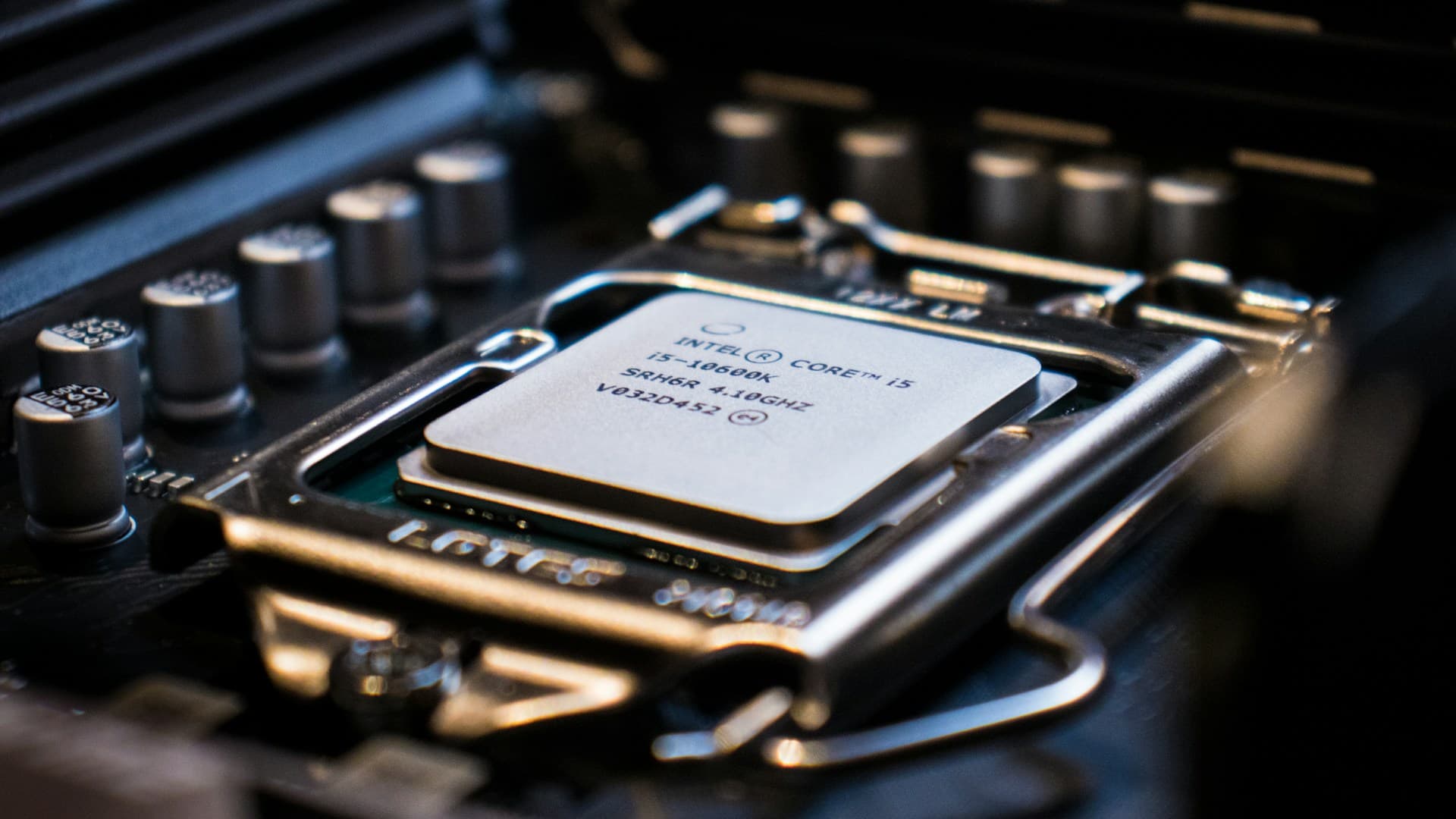
In five years of helping people diagnose slow PCs, I can count on one hand the times a CPU was genuinely the culprit. It's almost always the storage drive, the RAM, or the GPU. The CPU gets blamed because it's the "brain" and brains sound important — but the brain sitting idle at 40% utilization while your hard drive spins at 100% is not your problem. Open Task Manager and check the numbers before spending anything here.
What This Guide Covers
1. The Honest Reality About CPU Upgrades
Modern CPUs last longer than most people assume. A Ryzen 5 5600X released in 2020 or an Intel Core i7-12700K from 2021 still handles 1440p gaming without meaningfully bottlenecking mid-range GPUs in most titles. These processors have six to twelve cores, strong single-threaded performance, and instruction set support for every game on the market right now. The idea that a four-year-old CPU is "outdated" for gaming is mostly driven by marketing, not benchmarks.
The CPU is also the most expensive upgrade to get wrong. Unlike a RAM stick or an SSD, a CPU upgrade often drags a motherboard and new RAM along with it — and the combined cost can easily reach $700–900 before you've bought anything else. That's why the diagnostic check in the next section matters more for CPUs than for any other component. Confirm the bottleneck first. Always.
2. How to Confirm Your CPU Is Actually the Bottleneck
Download MSI Afterburner (Guru3D official download) along with RivaTuner Statistics Server (it installs alongside Afterburner). Enable the in-game overlay showing CPU usage, GPU usage, and frame time. Then play your most demanding game for at least five minutes in a heavy scene — not the main menu. (The main menu will always show GPU at near-zero usage and trick you into thinking you have a CPU problem — always test in an actual game session.)
CPU at 90–100%, GPU sitting at 60–70% is a CPU bottleneck confirmed. The processor is at its limit and the graphics card is waiting. A CPU upgrade will directly raise your frame rate here.
GPU at 95–100%, CPU below 80% is a GPU bottleneck. The graphics card is the limit, not the processor. A CPU upgrade in this scenario is dead money — it will produce essentially zero improvement in the game you're playing.
Both below 80% with FPS still low — check CPU and GPU temperatures with HWMonitor. If your CPU is hitting 95°C or above, it's thermally throttling — dropping its clock speed to avoid damage. This looks identical to an underpowered CPU but the fix is a cooler or fresh thermal paste, not a new processor.
For productivity tasks like video rendering or 3D work, Windows Task Manager alone is sufficient. Open it with Ctrl+Shift+Esc, go to Performance, and watch the CPU tab during a render or compile. If it's sitting at 90–100% throughout and that's what's slowing you down, a CPU upgrade will help linearly — more cores and higher clocks translate directly to shorter render times.
3. When a CPU Upgrade Genuinely Makes Sense
There are four scenarios where a CPU upgrade is the right call, and they're more specific than most people expect.
Competitive gaming at 1080p targeting 200+ FPS. Games like CS2, Valorant, and Fortnite are CPU-bound at high frame rates. Once your GPU is fast enough to push 200+ FPS, the processor becomes the ceiling. If you're on a 240Hz monitor and hitting 160 FPS in CS2 despite your GPU barely working, your CPU is the limit. This is one of the few gaming scenarios where a CPU upgrade produces a directly visible, meaningful result. I've tested this exact scenario on a Ryzen 5 3600 paired with an RTX 4070 — the GPU sat at 55% utilization in CS2 while the CPU pegged 100%. Swapping to a 5600X brought frames from 180 to 240 consistent.
Regular video rendering, 3D modeling, or code compilation. These workloads scale linearly with CPU performance up to the point where memory bandwidth or software limits kick in — which for Blender and Premiere doesn't happen until you're past 16 cores. More cores and higher clocks produce proportionally shorter export and compile times. A Ryzen 9 5900X cuts a 10-minute 4K Premiere Pro export to roughly 4 minutes compared to 9 minutes on a Ryzen 5 3600 — that's the kind of time savings that compounds across a working week. If you're rendering less than an hour per week, the math gets harder to justify.
Your CPU is 6+ years old and you're pairing it with a high-end GPU. An RTX 5070 or RX 9070 XT paired with a 2018-era quad-core will show a CPU bottleneck at virtually any resolution. If you've recently bought a high-end GPU and performance has been disappointing despite the upgrade, this is worth investigating.
You've confirmed the bottleneck with monitoring tools. This one contains all the others. If Afterburner is showing CPU at 90–100% while your GPU runs well below its capacity during the exact tasks that feel slow — upgrade. The data makes the decision, not the age of the chip.
5. The BIOS Update Requirement — The Most Skipped Step
⚠️ Update BIOS before touching the CPU
If your new CPU requires a BIOS version the board doesn't have, the PC will not boot — and you'll have no way out without putting the old CPU back in. Do this check first, every time.
Every motherboard has a CPU support list — a table on the manufacturer's website that shows exactly which processors work with which BIOS version. Go to your board manufacturer's site (ASUS, MSI, Gigabyte, ASRock), find your specific motherboard model, and check the CPU support list for your target chip.
If the CPU requires a newer BIOS than what your board currently has, you must update the BIOS while your old CPU is still installed. The reason is straightforward: if you install the new CPU first and the board doesn't support it yet, the machine will not POST — it won't show anything on screen, won't reach the BIOS menu, won't reach Windows. You'll be staring at a completely unresponsive system with no way to update anything. The only path out is removing the new CPU and reinstalling the old one.
I've seen this happen to two different people I walked through their first CPU upgrade — one on an AM4 board, one on LGA1700. Both called it "the scariest 20 minutes of my life" before we figured out what was going on. One of them had already priced out a new motherboard before we tried pulling the new CPU. Avoid it entirely: check the support list first, update if needed with your old CPU still in place, then swap.
Some newer motherboards support BIOS FlashBack — a feature that lets you update the BIOS from a USB drive without any CPU installed at all. If your board has this, it's useful insurance. On ASUS boards it's labeled "FlashBack," on MSI boards it's "Flash BIOS Button," on Gigabyte it's "Q-Flash Plus" — each uses a specific rear-panel USB port, check the silk-screen label next to the port.
6. Socket Guide — What's Viable in 2026
AMD AM5 supports Ryzen 7000 and 9000 series processors. AMD has publicly committed to AM5 support through at least Zen 6, making it the best long-term platform choice right now if you're doing a full platform upgrade. The Ryzen 7 9700X and Ryzen 9 9900X are the current mainstream options; the Ryzen 7 9800X3D sits at the top for gaming performance. AM5 requires DDR5 exclusively.
AMD AM4 covers Ryzen 1000 through 5000 series. The platform is at end-of-life from AMD's perspective, but if you're already on AM4 and want a last-generation upgrade, the Ryzen 5 5600X3D and Ryzen 7 5700X3D are still available and represent a genuine performance step on the same board. After that, AM4 has nowhere left to go. Factor in whether the upgrade headroom justifies staying on the platform versus investing in AM5.
Intel LGA1700 supports 12th, 13th, and 14th Gen Core processors. If you're on an LGA1700 board and want to upgrade within the platform, 13th and 14th Gen options are available but Intel's reputation for LGA1700-era chips has taken some damage following the instability issues that affected 13th and 14th Gen high-performance parts. If gaming performance stability is your priority, stick to 13th Gen and avoid the high-performance K-series parts that had instability issues in 2023–2024.
Intel LGA1851 supports the Core Ultra 200 series. Intel has been less forthcoming about long-term platform roadmap compared to AMD's AM5 commitment, and that matters for anyone building with future upgrades in mind — AMD is the safer bet here until Intel clarifies its post-LGA1851 roadmap. In gaming benchmarks through early 2026, the Core Ultra 9 285K trades blows with the Ryzen 9 9900X — neither platform has a clear performance edge at 1440p. See GamersNexus CPU benchmark comparisons for the latest cross-platform data.
7. Common CPU Upgrade Mistakes
Mistake 1: Upgrading the CPU when the GPU is actually the bottleneck
This is the most common and most expensive CPU mistake. Someone sees low FPS in games, assumes the processor is to blame because it's older, spends $300–400 on a new chip, and sees essentially no improvement — because their GPU was sitting at 97% utilization the whole time. The diagnostic check with MSI Afterburner takes ten minutes and would have caught this immediately. Always check before buying.
Mistake 2: Calculating only the CPU cost for a platform change
The CPU listing shows $265 and it seems manageable. Then the compatible motherboard is $180 and DDR5 RAM is another $340, and suddenly the "CPU upgrade" costs $785. This happens regularly when someone moves from an older AMD or Intel platform to a current one without adding up the full cost of the transition. Calculate the total — board plus RAM plus CPU — before committing to anything.
Mistake 3: Installing the new CPU without checking BIOS compatibility first
The result is a machine that won't POST — no screen, no boot, nothing. This looks like a dead motherboard or a defective CPU but it's almost always a BIOS version mismatch. The fix requires pulling the new CPU back out and reinstalling the old one to do the update that should have been done in the first place. Check the manufacturer's CPU support list before installing anything. On ASUS, the URL pattern is asus.com/[board-model]/HelpDesk_CPU/ — search "[your board model] CPU support list" to find it in under a minute.
Frequently Asked Questions
How do I know if my CPU is actually bottlenecking my GPU?
Install MSI Afterburner with RivaTuner and enable the in-game overlay. Play your most demanding game for at least five minutes and watch the CPU and GPU usage numbers simultaneously. CPU at 90–100% with GPU below 70% is a CPU bottleneck. GPU at 95–100% with CPU below 80% is a GPU bottleneck — a CPU upgrade will do nothing for you there. See GamersNexus CPU benchmark comparisons for additional bottleneck methodology and benchmark context.
Can I upgrade my CPU without changing my motherboard?
Within the same platform, yes — upgrading from a Ryzen 5 5600X to a Ryzen 7 5800X3D on an AM4 board works without a new motherboard, though a BIOS update is usually required first. Crossing to a new socket (AM4 to AM5, LGA1700 to LGA1851) always means a new motherboard and often new RAM too. Identify your socket first, then check whether your target CPU shares it.
My CPU is 5 years old — does that mean it needs upgrading?
Not necessarily. A Ryzen 5 5600X or Core i7-12700K still handles 1440p gaming without bottlenecking mid-range GPUs in most titles. Age is not a reason to upgrade on its own. Check your actual utilization under load — if the CPU is running below 80% during the tasks that feel slow, something else is the bottleneck, and upgrading the processor will change nothing.
What happens if I install a new CPU without updating the BIOS first?
If the new CPU requires a BIOS version your board doesn't have, the PC will not POST — it won't reach the boot screen or the BIOS menu. The machine will appear completely dead, and the only way out is removing the new CPU and reinstalling the old one to run the update. Always check the CPU support list on your motherboard manufacturer's website and update while the old CPU is still installed.
Is a CPU upgrade worth it for competitive gaming?
It can be, specifically for 1080p at 200+ FPS in CPU-bound titles like CS2, Valorant, and Fortnite. At those frame rates the processor becomes the ceiling, not the GPU. At 1440p or 4K in AAA games the GPU dominates and the CPU matters far less. Confirm with Afterburner that your CPU is consistently at 90–100% during play before spending anything — an occasional spike is not the same as a sustained bottleneck.
What to Read Next
- GPU upgrade guide — if Afterburner showed your GPU at 95%+ rather than your CPU, this covers the bottleneck confirmation, VRAM requirements by resolution, PSU wattage math, and DDU cleanup before swapping cards.
- What should I upgrade on my PC? — if you're still not sure whether the CPU, GPU, RAM, or storage is your real bottleneck, this guide walks through the full diagnostic process step by step using Task Manager, CPU-Z, and MSI Afterburner.
- PC upgrade priority for gaming — covers how gaming flips the standard upgrade order, how resolution affects which component matters most, and when CPU actually moves up the priority list.
- How to fix low FPS in games — before any hardware upgrade, this guide covers the free software-side fixes (drivers, XMP, power plan, background processes) that resolve most FPS problems without spending anything.