PC Upgrade PathThe right upgrade order — and the reasoning behind it
What This Guide Covers
A friend of mine spent $350 on a new GPU because his PC was slow. The machine ran just as poorly afterward. The real problem was a seven-year-old mechanical hard drive showing 100% disk utilization every time he opened an application. The GPU had nothing to do with it. One $65 NVMe SSD later, the same PC that had been frustrating him for a year felt like a different machine.
That's the most expensive lesson in PC upgrading: buying the right part for the wrong problem. The upgrade order on this page — SSD, RAM, GPU, CPU — exists because it matches the most common bottlenecks in order of frequency and impact. It isn't arbitrary. This page explains why each step sits where it does, and links to every dedicated guide on this site.
Start Here — Pick Your Path
If you already know what's slowing your PC down, go directly to the component guide. If you're not sure, start with the bottleneck diagnostic — it uses Task Manager to identify the problem before you spend anything. If you're wondering whether upgrading is even worth it on your machine, the compatibility and buy-new guides cover that too.
Not sure where to start
Find Your Bottleneck
Step-by-step diagnosis using Task Manager, GPU-Z, and HWMonitor
What to Upgrade First
Match your symptoms to the right upgrade — fast, prescriptive answers
Can I Upgrade My PC?
Check slots, socket, PSU, and OEM limits before buying anything
Upgrade or Buy New?
The 50–60% cost rule and age thresholds that decide the answer
Upgrade by component
By situation
Gaming PC Upgrade Guide
How gaming flips the default order — GPU first, resolution, and VRAM
Upgrading an Old PC
DDR3 boards, AM3/AM4 limits, and age thresholds for giving up
How to Speed Up a Slow PC
Software fixes — startup cleanup, drivers, bloat — before spending anything
How to Fix Low FPS in Games
MSI Afterburner diagnosis, driver fixes, and the XMP free boost
1. Why Upgrade Order Matters More Than the Parts
The GPU my friend bought was a reasonable card. It would have made a genuine difference in the right machine. But his PC wasn't limited by its graphics performance — it was limited by a spinning hard drive that physically could not keep up with basic Windows operations. That drive was showing 100% disk utilization in Task Manager every time he opened a program. Adding a better GPU to that system was like replacing the engine in a car with a flat tire. The new part was real, but it had no effect on the actual problem.
This is the most common upgrade mistake: treating a PC upgrade as a general refresh rather than a solution to a specific, confirmed problem. A GPU handles rendering frames in games. It does nothing for how fast Windows loads, apps open, or files save. If the bottleneck is storage, a new GPU is a $300–$500 non-event.
The upgrade order — SSD first, then RAM, then GPU, then CPU — exists because it matches the most common bottlenecks in order of frequency and impact. Most people with slow PCs have slow storage. The second most common issue is insufficient RAM. GPU limitations affect gamers specifically. CPU bottlenecks are the rarest of the four, and the most expensive to fix. Following the order means the first thing you buy is the thing most likely to actually solve your problem.
2. The Logic Behind the Default Order
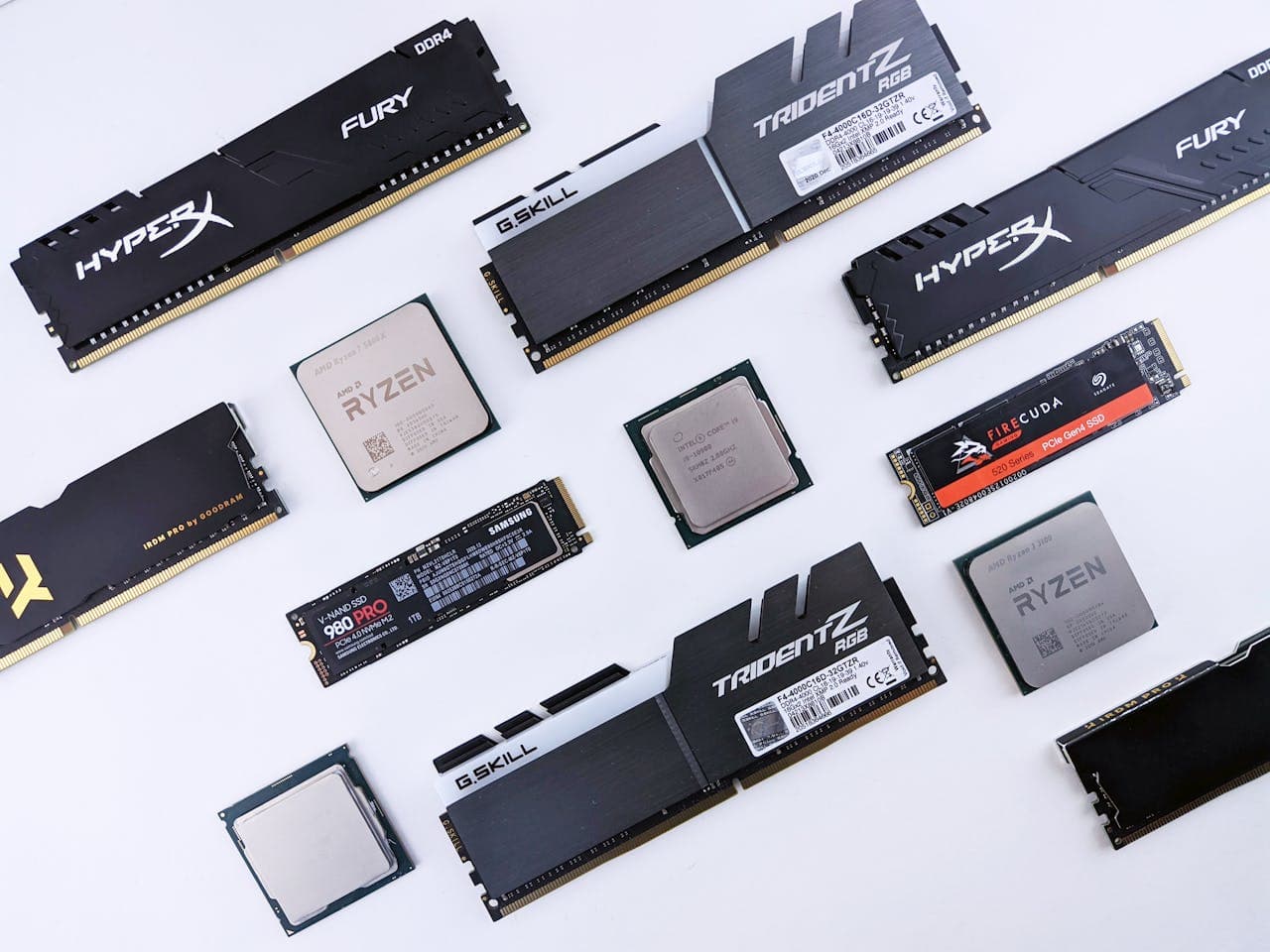
SSD first — storage is the universal bottleneck
A mechanical hard drive has a spinning platter and a physical read head. Every time your OS needs to load a file — an application, a system process, a browser cache entry — that head has to seek to the right position on the disk. The result is boot times of 85–90 seconds, app launches that take 10–15 seconds, and that distinctive freeze-and-catch-up pattern that makes a PC feel sluggish even on relatively modern hardware. An NVMe SSD eliminates this entirely: boot time drops to under 10 seconds, apps open in under 2.
What makes SSD the right first upgrade is scope. Unlike RAM or GPU improvements, which benefit specific workloads, storage affects every single thing the PC does. There's no task that doesn't involve reading from or writing to the drive. A mid-range 1TB NVMe costs $60–$80 in 2026. Nothing else at that price comes close to the impact across day-to-day use.
RAM second — 8GB is genuinely insufficient in 2026
Windows 11 alone uses around 3–4GB at idle. Chrome with a handful of tabs, Discord, and one other application can push an 8GB system to 90–94% memory utilization without doing anything demanding. When RAM fills, Windows uses the SSD as overflow memory. Even on a fast NVMe, this is significantly slower than actual RAM — you'll feel it as brief freezes when switching applications, tabs that reload when you return to them, and the "Not Responding" flash on apps that are waiting for memory to free up.
Going from 8GB to 16GB under the same workload typically drops utilization from 90–94% down to 50–60%. If you're already at 16GB and don't do video editing or run virtual machines, RAM is almost certainly not your bottleneck.
If you're already on 16GB and wondering whether the stutter you're experiencing is actually a RAM problem, I broke down exactly when 16GB still holds up and when it doesn't in Is 16GB RAM Enough for Gaming in 2026?
GPU before CPU — rendering is the GPU's job
In games, the GPU is responsible for producing every frame. Low frame rates and choppy visuals are almost always a GPU problem, not a CPU problem. A fast CPU paired with a slow GPU produces low frame rates. A moderately older CPU paired with a good GPU produces high frame rates. This is why GPU comes before CPU for anyone who games or does video work. The Tom's Hardware GPU hierarchy is the clearest reference for understanding where a given card sits in relative performance terms.
The caveat: check utilization before buying. If your CPU is at 95% and your GPU is sitting at 50% during a game, a GPU upgrade won't fix the problem — the CPU is the limit. Open Task Manager during a gaming session and watch both numbers before drawing any conclusions.
CPU last — modern processors are still capable
A CPU from 2018 or later is still genuinely capable for the vast majority of tasks in 2026. Word processing, web browsing, video calls, moderate gaming — none of these require a cutting-edge processor. The real reason CPU sits last on the list isn't just that it's rarely the bottleneck — it's that upgrading the CPU is almost never as simple as it appears. Most processors require a specific motherboard socket. A new CPU frequently means a new motherboard. A new motherboard often means new RAM, since DDR4 and DDR5 are not interchangeable. What looks like a $200 CPU upgrade can realistically become a $500–$700 platform replacement. That money consistently produces better results spent on an SSD or GPU first.
3. How the Order Changes by Use Case
The default order works for most people. Three situations shift the priorities enough to be worth knowing about.
Gaming
If gaming is your primary use case and you're already on an SSD, the GPU moves to first position. Low frame rates in games are almost never a storage or RAM problem once you're past 16GB and running on an SSD — they're a GPU problem. Spending money on RAM beyond 16GB or on a CPU before addressing an outdated GPU is a mistake. Confirm via in-game overlay that GPU utilization is actually the limiter, then act on it. The full gaming upgrade guide covers how resolution changes the priority, and when VRAM starts to matter more than raw GPU speed. If you're deciding between the two dominant mid-range cards right now, the RTX 5060 Ti vs RX 9060 XT comparison breaks down the 5% performance gap, the $40–$108 price delta, and exactly who should pay the premium.
Old PC (5+ years)
An SSD on a five-to-eight year old machine is still almost always the right move. Storage technology hasn't changed the way CPU and GPU generations have — an NVMe in a 2017 machine is still a massive improvement over the HDD it replaces. GPU and CPU upgrades on older platforms are harder to justify: the socket may be end-of-life, older RAM formats are harder to source cheaply, and a modern GPU's power demands can exceed what an aging PSU can handle. On a machine that's 8–10 years old, the SSD is often the only upgrade worth making before the buy-new question becomes the real conversation. The old PC upgrade guide covers which platforms still have life in them and which don't.
Office and productivity only
For email, documents, spreadsheets, and browser use, the path is short: SSD first, then RAM if you're under 16GB. That's the entire list. A GPU upgrade does nothing for Excel or Outlook. A CPU upgrade does nothing for Chrome tabs. If the machine still feels slow after an SSD and adequate RAM, check software — startup programs, background processes — before touching any additional hardware.
4. The One Question to Ask Before Buying Anything
Before spending anything on an upgrade, ask this: is the component I'm about to buy actually running at or near 100% utilization when my PC feels slow?
Open Task Manager (Ctrl+Shift+Esc) → Performance tab. Reproduce whatever makes your PC feel slow. Then read the graphs:
- —Disk at 90–100%: upgrade to an SSD. This is the problem, and the fix is immediate and dramatic.
- —Memory at 90–100%: you need more RAM, and your machine is actively pagefiling onto the drive.
- —GPU at 95–100% during a game with low FPS: GPU upgrade makes sense. Confirm with HWMonitor that temperatures aren't causing throttling first.
- —CPU at 95–100% while GPU sits below 60%: CPU bottleneck. Check thermals before assuming replacement.
- —Everything below 80%: the problem is likely software — startup programs, background processes, malware — not hardware.
If you have both an HDD and an SSD installed
Check both drives in the Disk tab — the one at 100% is your bottleneck. If your OS and applications are still installed on the HDD, moving them to the SSD will fix it even if the SSD is already present in the machine.
For a full step-by-step walkthrough using Task Manager, GPU-Z, and HWMonitor to pinpoint your specific bottleneck, see the bottleneck diagnosis guide.
5. Common PC Upgrade Mistakes
Mistake 1: Upgrading RAM when the real problem is the HDD
RAM pressure and storage pressure produce nearly identical symptoms — slow app responses, sluggish task switching, occasional brief freezes. Because people are more aware of RAM as a concept, it gets bought first. But if the disk is at 100%, adding RAM does almost nothing. The machine still has to wait for the drive. I've seen this exact situation three or four times: someone installs a second RAM kit, notices no improvement, and concludes "RAM just doesn't matter that much." The RAM was fine. The drive was always the problem. Always check Task Manager's Disk utilization before assuming RAM is the bottleneck.
Mistake 2: Buying a GPU for a PC that isn't used for gaming
GPUs accelerate rendering — specifically for games, 3D modeling, and video encoding. They have no measurable effect on browser speed, document loading, email, or general Windows responsiveness. A $300 GPU on a machine used for Outlook and Excel is an invisible upgrade. The symptom that typically leads here is a general sense that the PC is "getting old and slow" — which almost always traces back to storage or RAM, not graphics.
Mistake 3: Skipping the SSD because "it seems too simple"
I've had this conversation more than once. Someone describes a machine that takes two minutes to boot, freezes randomly for a few seconds, and generally feels exhausting to use. I tell them an $70 NVMe SSD will fix it. They push back — it doesn't feel like a real fix, it doesn't address the "real problem," they want to understand what's actually wrong. The SSD is what's actually wrong. Boot time going from 90 seconds to 8 seconds is not a marginal improvement. Don't dismiss it because it doesn't feel proportional to the frustration you've been experiencing.
Mistake 4: Not checking compatibility before buying
Every component has constraints that aren't obvious from the product listing. SSDs need an available M.2 slot or SATA port. RAM must match your motherboard's supported type and maximum speed. A GPU requires adequate PSU wattage and physical clearance inside the case. A CPU upgrade may require a motherboard replacement. None of this is complicated to verify in advance — but buying the wrong part and returning it costs real time. The upgradeability guide covers the specific checks for each component.
6. All PC Upgrade Guides
Every guide on this site, organized by topic. The component deep-dives cover the buying decision and compatibility specifics for each part. The decision guides answer the comparison questions. The troubleshooting pages help you fix problems before spending money.
Component deep dives
SSD Upgrade Guide
NVMe vs SATA, Gen 3 vs Gen 4 real speeds, M.2 slot check, cloning vs reinstall
RAM Upgrade Guide
DDR4 vs DDR5 identification, dual channel, XMP/EXPO, why you shouldn't mix kits
GPU Upgrade Guide
VRAM by resolution, PSU wattage math, bottleneck check, DDU before swapping
CPU Upgrade Guide
Socket compatibility, hidden platform costs, BIOS update requirement, when it's actually worth it
Decision & comparison guides
RAM or SSD First?
If you're still on an HDD, SSD wins every time. This guide explains when RAM becomes the answer after that.
RAM or GPU First?
The 16GB threshold, XMP as a free fix, and why VRAM and system RAM are different problems.
RTX 5070 Ti vs RX 9070 XT
The two most competitive mid-range cards in 2026 — who should buy which, and whether the $300 street price gap is worth it.
Best GPU for 1440p Gaming in 2026
If you've confirmed the GPU is your bottleneck and want to know which card to buy for 1440p, this guide breaks down every budget tier with current street prices and benchmarks.
Upgrade or Buy New?
The 50–60% cost rule, age thresholds, and the 2026 DDR5 pricing situation that changes the math.
RAM — benefits & requirements
RAM Upgrade Benefits
What actually changes day-to-day — tab reloading, app switching, game stutters — with Task Manager numbers to prove it.
How Much RAM Do I Need?
8GB vs 16GB vs 32GB in 2026, with direct recommendations per use case and the diminishing returns point.
Is 16GB RAM Enough for Gaming in 2026?
When 16GB still holds up for esports, when open-world AAA titles push past the ceiling, and whether the current price spike changes the upgrade math.
Frequently Asked Questions
What should I upgrade first on my PC?
For most people, upgrade to an SSD first if you're still on a spinning hard drive. Boot time drops from around 85–90 seconds to under 10, and every task on the machine improves immediately — not just one type of workload. After that, add RAM if you're running less than 16GB and Task Manager shows Memory consistently above 85%.
Does PC upgrade order actually matter?
Yes, significantly. Upgrading the wrong component means spending real money on something that doesn't fix your actual problem. A GPU upgrade on a machine with a slow HDD has no effect on day-to-day sluggishness — the storage is still the bottleneck. The upgrade order ensures each purchase addresses a real, confirmed problem rather than a guess.
Why is CPU almost always last on the upgrade list?
The hidden cost is the main reason. Upgrading the CPU often requires a new motherboard, which usually means new RAM as well — DDR4 and DDR5 are not interchangeable. What looks like a $200 purchase realistically becomes a $500–$700 platform change. Beyond that, CPUs from 2018 onward are still capable for most tasks in 2026. Most slow PCs are slow because of storage or RAM, not processing power.
I only use my PC for office work. What should I upgrade?
SSD first, then RAM if you're under 16GB. For email, documents, and browser use, you don't need a GPU or CPU upgrade. An SSD will transform how the machine feels — app launch time, browser responsiveness, file save speed all improve immediately and noticeably.
How do I know which component is actually my bottleneck?
Open Task Manager (Ctrl+Shift+Esc) → Performance tab while the PC feels slow. Disk near 100% means SSD. Memory at 90%+ means RAM. GPU at 95–100% during a game means GPU. If nothing is maxed, check for software issues before touching hardware. The full diagnostic walkthrough — including GPU-Z and HWMonitor — is in the bottleneck diagnosis guide.
What to Read Next
- Find Your Bottleneck — if you're not sure which component is limiting your machine, this guide walks through the Task Manager, GPU-Z, and HWMonitor diagnosis step by step.
- PC Upgrade Guide 2026 — once you know what to upgrade, this page covers specific product picks and pricing at every tier.
- How to Upgrade Your PC — the physical installation guide for SSD, RAM, GPU, and CPU, with photos for each step.
- Upgrade or Buy New? — if your machine is 6+ years old, this guide covers the cost threshold and age rules that determine whether upgrading still makes financial sense.