Should I Upgrade to an SSD?NVMe vs SATA, compatibility checks, and everything you need to know before buying
What This Guide Covers
The first time I upgraded a machine from an HDD to an NVMe SSD, I honestly thought something had gone wrong. The PC booted so fast I assumed it had skipped a step — that it hadn't finished loading something. It hadn't skipped anything. That's just what a machine with proper storage feels like. Boot time dropped from about 85 seconds to under 10. Chrome opened before I'd moved my hand off the power button.
If you're still on a spinning hard drive in 2026, this is the single most impactful upgrade you can make — more impactful per dollar than RAM, GPU, or CPU for most people's daily use. But before you buy anything, there are a few things worth checking: what slot type your board has, which drive tier actually makes sense for it, how much storage you really need, and whether you want to clone your existing drive or start fresh. This guide covers all of it.
What it doesn't cover: the physical installation steps (those are in the PC upgrade installation guide) and specific product picks by tier (those are in the 2026 PC upgrade guide).
1. The Before/After Reality
Here's what the upgrade actually looks like in numbers. On a typical 7,200 RPM mechanical hard drive, a Windows 11 cold boot takes 85–90 seconds from power button to usable desktop. On a SATA SSD, that drops to around 15 seconds. On an NVMe Gen 3 or Gen 4 drive, it's under 10 seconds. Applications tell the same story: Chrome on an HDD takes 10–15 seconds to open from a cold start. On NVMe, it's under 2 seconds.
These aren't edge-case results on a clean install. They're what I see consistently across machines that have had their boot drive swapped. The reason the gap is this large is mechanical: an HDD has spinning platters and a physical read head that has to seek across the disk for every file. An SSD reads everything electronically, with no moving parts and no seek time. The architecture is fundamentally different — not just incrementally faster.
The effect shows up in everything you do, not just boot time. File saves, temp writes, paging when RAM fills up, game loading — all of it runs through storage. This is why an SSD upgrades the feel of a whole machine, not just one task. It's also why I recommend it before RAM for most users who don't have one: if your disk is the bottleneck, more RAM won't fix it. Only the drive swap will.
Not sure whether storage is actually your bottleneck? Open Task Manager (Ctrl+Shift+Esc), click the Performance tab, and look at the Disk section. If it's pegged at or near 100% while you're just opening apps, the drive is what's slowing you down. The RAM vs SSD guide also walks through exactly this check if you're still deciding between the two.
2. NVMe vs SATA — Which Do You Actually Need?
There are three real tiers of SSD to know about, and they connect to your board in different ways. Getting this wrong doesn't break anything — but it does mean you might pay for speed your system can't use.
SATA SSD (~550 MB/s)
A SATA SSD connects via the same interface as a traditional hard drive, either through a 2.5-inch bay with a SATA data cable, or via an M.2 slot that supports SATA (some M.2 slots are SATA-only, not NVMe). Sequential read speed tops out at around 550 MB/s — far slower than NVMe on paper, but still 10–15× faster than a mechanical HDD for random reads, which is what matters for boot time and app launches. Boot time on SATA SSD: 12–15 seconds. More than fast enough if NVMe isn't available on your board.
NVMe Gen 3 (~3,500 MB/s)
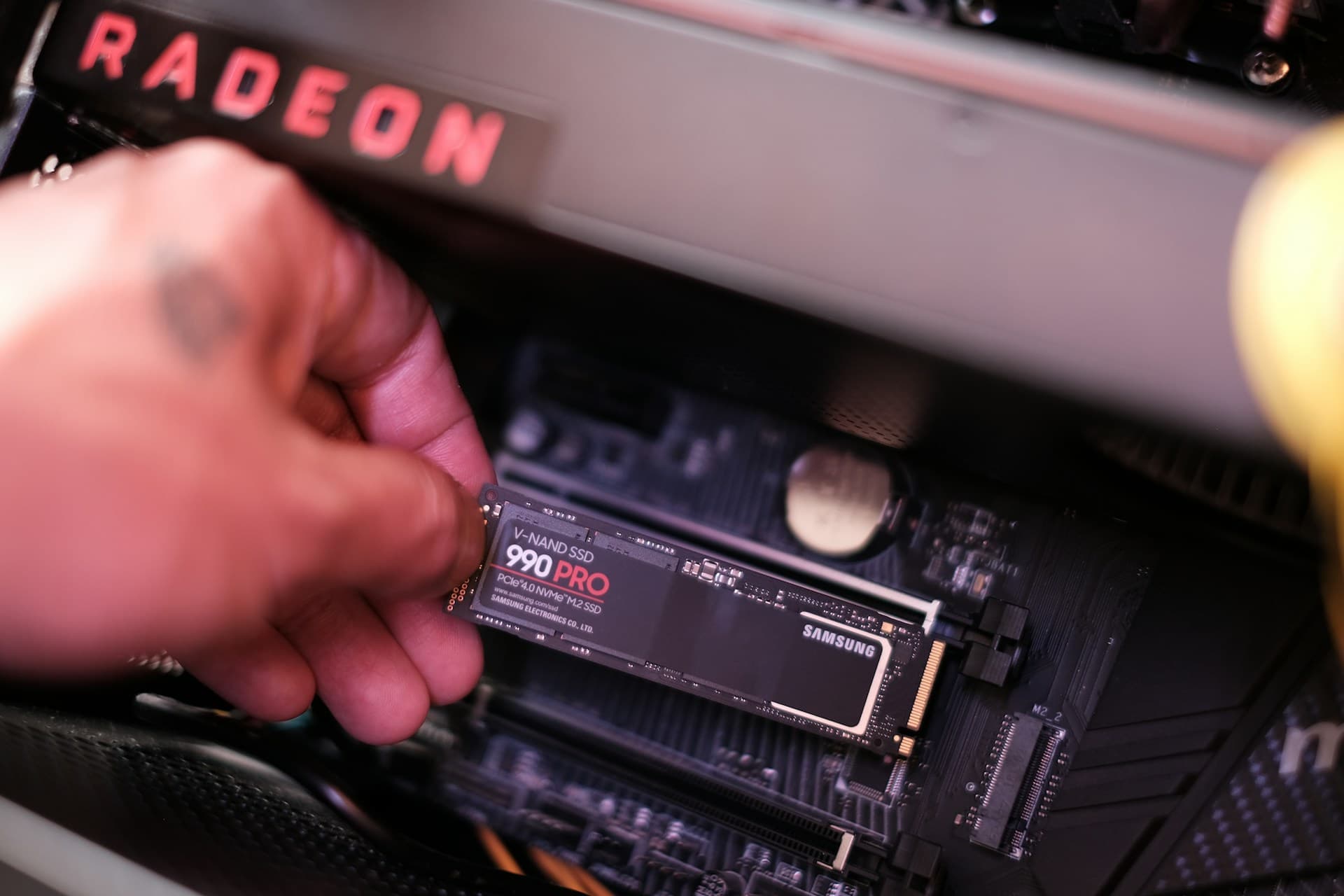
NVMe drives connect via the M.2 slot and run over PCIe lanes instead of the SATA controller. Gen 3 is what you'll find on most boards from roughly 2017–2020 and is still the most common type in use today. Sequential reads at ~3,500 MB/s. In real-world tasks — boots, app launches, game loads — Gen 3 and Gen 4 are close. The gap shows up more in large file transfers and workloads that saturate the drive continuously.
NVMe Gen 4 (~7,000 MB/s)
Gen 4 is supported on most boards from 2020 onwards — AMD's X570/B550/AM5 platforms and Intel's Alder Lake and later. Sequential reads at ~7,000 MB/s. This is the tier I'd recommend if your board supports it, not because you'll feel double the speed of Gen 3 in daily use, but because pricing between Gen 3 and Gen 4 drives has converged to the point where there's no reason to choose Gen 3 intentionally unless you're specifically trying to spend less. You can verify compatibility via Tom's Hardware's SSD benchmarks if you want real-world comparisons before buying. Run CrystalDiskMark (free) to benchmark your existing drive before and after if you want numbers you've measured yourself.
NVMe Gen 5 (~12,000 MB/s)
Gen 5 drives are available as of 2024–2026 and reach sequential reads above 12,000 MB/s. I'd skip them for a typical upgrade. The premium is significant, the drives run hot enough that many require their own active cooling, and the practical difference in game load times over Gen 4 is under two seconds. This tier makes sense for professional data workloads (large video projects, virtual machine images, database work) — not for upgrading a slow gaming or work PC.
Buy to match your slot, not the spec sheet
Installing a Gen 4 NVMe drive in a Gen 3 slot doesn't damage anything — the drive will work, but it will run at Gen 3 speeds. You'll have paid Gen 4 prices for Gen 3 performance. Check your slot generation first (Section 3 below) before choosing a drive tier.
3. How to Check What Your Board Supports
There are two ways to find your motherboard's M.2 slot spec. Start with the software method — it's faster and you don't need to open anything.
Method 1: msinfo32 (no tools needed)
Press Win + R, type msinfo32, press Enter. In the System Information window, look for "BaseBoard Product" in the right pane — that's your motherboard model. Search that model number online with "M.2 slots" appended and you'll find the spec page or manual listing exactly which slots support NVMe Gen 3, Gen 4, or SATA.
Most boards have at least one M.2 slot, and on boards from 2019 onwards, that slot is usually NVMe. The catch is that some boards have two M.2 slots where one is NVMe and one is SATA-only — they look identical physically. The manual will make clear which is which.
Method 2: Open the case and look
The M.2 slot is a small horizontal slot near the CPU, usually covered by a metal heatsink plate on modern boards. The PCB silkscreen next to the slot often prints the slot type — something like "M.2_1 (PCIe 4.0 x4)" or "M.2 SATA/PCIe." If the silkscreen isn't legible, find the board manual online (model number from msinfo32) and check the physical layout diagram. This takes about two minutes and removes all guesswork.
What if you don't have an M.2 slot?
Older boards — pre-2016 or budget boards from that era — sometimes have no M.2 slot at all. In that case, a 2.5-inch SATA SSD is your option. It still delivers the dramatic boot-time improvement over an HDD; the SATA interface is the bottleneck, not the drive itself. The old PC upgrade guide covers whether the rest of the system is worth upgrading if you're on a platform this old.
4. When an SSD Won't Solve Your Problem
This is the section most upgrade guides skip, and it's the one that prevents wasted money. An SSD fixes storage-related slowness. It doesn't fix everything.
You already have an NVMe SSD. If your primary drive is already NVMe, upgrading to a faster NVMe won't meaningfully change your daily experience. Boot times and app launches are already bottlenecked by other factors (Windows startup processes, RAM speed, driver initialization) rather than raw drive throughput. The next upgrade that will actually feel different is probably RAM — check Task Manager's Memory tab.
Games still load slowly despite having NVMe. Some open-world games with large streaming areas are bottlenecked by RAM and CPU decompression speed, not drive speed. If you've already got NVMe and GTA VI or Microsoft Flight Simulator still stutters when loading new areas, the fix is 32GB RAM, not a faster SSD.
Windows feels slow despite having an SSD. If Task Manager shows your SSD at 20–30% utilization but everything still feels sluggish, the problem is elsewhere. Check RAM utilization (above 85% with normal apps open = RAM bottleneck), check startup programs (Task Manager → Startup tab — disable anything you don't need), and run a quick malware scan. A slow SSD that's nearly full — under 10–15% free space — can also exhibit reduced write performance on certain drives, so check available space.
Your PC is too old to justify the investment. If you're on a platform with a CPU older than roughly 2014 and less than 8GB of RAM with no upgrade path, the SSD will make boot time faster but the rest of the system will still feel slow. Read the upgrade vs buy new guide before committing to hardware on a system that might need replacement anyway.
5. Capacity: How Much Storage Do You Actually Need?
This is where I see the most regret after an upgrade. People buy a 500GB SSD, fill it up within six months, and then have to manage what stays on the fast drive vs. what gets shuffled to a secondary HDD. Here's the honest math.
Windows 11 plus the default apps and a reasonable set of software takes 60–80GB. One modern AAA game runs 60–150GB — Red Dead Redemption 2 is 150GB, Call of Duty is around 100GB, most others are 60–100GB. If you play more than three or four games at once, 1TB fills up faster than you expect.
My recommendation: 1TB is the practical minimum for a gaming or work machine in 2026. 2TB is the right call if you have more than a handful of games installed, shoot RAW photos, do any video editing, or just hate managing storage. The price premium for 2TB over 1TB on most NVMe drives is currently $20–$40 — worth it for the headroom. 500GB is fine only if this is a secondary drive for files and games you rarely touch, with the OS on a separate primary.
For a pure office/productivity machine with no gaming: 512GB or 1TB is plenty. Windows, Office, a browser, and your documents won't get anywhere near filling 512GB.
6. Clone vs Clean Reinstall — Which to Choose
If the new SSD is replacing your current boot drive rather than being added as a second drive, you have two options: clone the existing drive onto the SSD, or do a fresh Windows install. Both work. The right choice depends on your situation.
Cloning — carry everything over
Cloning copies your existing Windows installation, all installed software, your settings, and your files to the new SSD. When you boot from the new drive, everything is exactly where you left it. The tool I use for this is Rescuezilla — it's free, boots from a USB drive, and handles cloning between drives of different sizes cleanly. You'll need to temporarily have both drives connected simultaneously. The whole process — booting Rescuezilla, running the clone, verifying — takes 30–60 minutes depending on how much data is on the source drive.
Choose cloning if: your Windows install is well-maintained, you have a lot of software you don't want to reinstall, or you want the whole process done in under an hour with minimal hassle.
Clean reinstall — fresh start
A clean reinstall wipes everything and installs a fresh copy of Windows from scratch. You'll reinstall your apps, pull your files from a backup, and start from a clean state. This takes longer but gives you the fastest possible baseline — no accumulated junk, no leftover drivers, no bloatware. Expect 45–90 minutes from USB creation to a configured desktop, longer if you have a lot of software to reinstall. I default to a clean reinstall on machines that have been running for more than three years — the accumulated driver junk alone usually makes the fresh install faster than the equivalent clone. Use the official Windows 11 download tool from Microsoft to create a USB installer.
Choose a clean reinstall if: your current Windows install is years old and slow even before the drive swap, you've accumulated driver conflicts or persistent startup issues, or you just want the machine to feel completely fresh.
Back up first, regardless of which method you choose
Cloning usually goes fine, but drive swaps during cloning can introduce errors if there are bad sectors on the old drive. Copy anything irreplaceable — documents, photos, project files — to an external drive or cloud storage before you start. Ten minutes of backup prevents potential data loss.
7. Common Buying Mistakes
These are the three mistakes I see most often from people who've already bought a drive and come back with questions.
Mistake 1: Paying Gen 4 prices for a Gen 3 slot
A Gen 4 NVMe drive installed in a Gen 3 M.2 slot works — it just runs at Gen 3 speeds (~3,500 MB/s instead of ~7,000 MB/s). You've paid for capability your board can't use. The fix is simple: run the msinfo32 check in Section 3 before buying, confirm your slot generation, and buy the matching tier. Gen 3 drives are still widely available and cost less.
Mistake 2: Buying a DRAM-less drive for a write-heavy workload
Budget NVMe drives often omit the DRAM cache — a small amount of fast memory the drive uses to track the location of your data. For gaming and general use, DRAM-less drives are fine; games mostly read from the drive rather than writing to it constantly. For video editing, virtual machines, or any workload that involves sustained large writes, DRAM-less drives slow down significantly once they exhaust their SLC write cache — sometimes dramatically so. If your use case involves heavy writing, pay the small premium for a DRAM-equipped drive.
Mistake 3: Undersizing and regretting it within months
I've watched people buy 500GB, load a couple of games and their software, and find themselves at 80% capacity before the year is out. Then they're back to managing what stays installed and what gets moved to a secondary HDD — which defeats a lot of the speed benefit of the upgrade. The price gap between 1TB and 2TB is usually $20–$40. If there's any chance you'll want the space, take the 2TB. Capacity regret is one of the most predictable upgrade mistakes there is.
Frequently Asked Questions
Is NVMe actually worth it over a SATA SSD?
Yes, and if your board has an M.2 NVMe slot, go NVMe — the price difference between Gen 3 NVMe and SATA SSD is currently small enough that there's no reason to choose SATA intentionally. The gap between them is real but shows up less than the raw specs suggest. NVMe Gen 3 reads at ~3,500 MB/s vs SATA's ~550 MB/s, which sounds enormous, but boot times and app launches are fast on both. NVMe pulls ahead noticeably when you're doing large file transfers, video editing, or loading large game worlds with heavy asset streaming. If you only have a 2.5-inch SATA bay, a SATA SSD still transforms a machine coming from an HDD.
Will upgrading to an SSD increase my FPS in games?
Not directly. FPS is determined by your GPU and CPU, not your storage drive. What an SSD does for gaming is cut load times, reduce texture pop-in in open-world games, and eliminate the half-second stutter you get when entering a new area on an HDD. Some newer titles — like Cyberpunk 2077 — actually require an SSD to function correctly. If low FPS is your problem, the fix is a GPU upgrade or in-game settings adjustment, not a drive swap.
My PC already has an SSD but still feels slow. What's wrong?
Open Task Manager (Ctrl+Shift+Esc), go to the Performance tab, and check Memory utilization. If it's sitting above 85% with nothing unusual open, that's your real bottleneck — not the drive. Also check the Startup tab and disable any programs that don't need to launch at boot. An SSD that's nearly full (under 10–15% free space) can also slow write performance on certain drives, so check available storage too.
Can I add an SSD without replacing my existing hard drive?
Yes, if your board has an open M.2 slot or a spare SATA port. You'd install the new SSD as a second drive, then do a fresh Windows install onto it and set it as the boot drive in BIOS. Your old HDD stays connected and becomes storage for files, games, and anything that doesn't need fast access. This is often the cleaner option if your existing Windows installation has years of accumulated software on it.
Do I need Gen 4, or is Gen 3 fine?
Gen 3 is the right call unless your board explicitly supports Gen 4 and the price gap is under $15–20. Gen 3 reads at ~3,500 MB/s; Gen 4 at ~7,000 MB/s — in game load times the difference is usually under two seconds. Gen 5 (~12,000 MB/s) is not worth the premium for typical use; the gains are mostly visible in synthetic benchmarks and professional data workloads.
What to Read Next
- RAM vs SSD: which upgrade should come first? — if you're deciding between the two, this guide walks through the Task Manager check that answers the question in about 30 seconds.
- How to physically install an SSD — step-by-step installation guide covering M.2 insertion, SATA connections, and BIOS setup after the drive is in.
- 2026 PC upgrade guide — specific drive recommendations by tier and budget, updated for current pricing.
- How to speed up a slow PC — software fixes to try before buying any hardware, including startup cleanup, driver updates, and disk space management.
- Full PC upgrade path — the reasoning behind the upgrade order, and how it changes depending on your use case.