Should You Upgrade RAM or SSD First?How to check which one is actually your bottleneck — before you spend anything
The RAM vs SSD question answers itself the moment you open Task Manager and click the Disk tab. If it's showing 100% utilization while you're just opening Chrome, you need an SSD — no amount of RAM will help a storage drive that's physically maxed out. If the disk is sitting at 20–30% but your Memory tab is at 90%, that's a completely different problem, and an SSD won't touch it.
Most people skip this check and guess based on what sounds right. That's how you end up with 32GB of RAM in a machine that still takes two minutes to boot because it's still running on a seven-year-old spinning hard drive. Below is how to read the numbers, what each upgrade actually fixes, and the cases where you genuinely need both.
What This Guide Covers
1. The 30-Second Answer
If you're still running a traditional spinning hard drive, upgrade to an SSD first — always, no exceptions, regardless of how much RAM you have. The HDD is the bottleneck, and nothing else you spend money on will change how the machine feels until you fix it.
If you already have an SSD and your RAM is consistently above 85% in Task Manager, then RAM is your next upgrade. Going from 8GB to 16GB drops utilization from around 90% down to 50–60% under normal multitasking — that gap is what's causing the app freezes and tab reloading.
If you already have an SSD and your RAM is sitting below 70%, neither upgrade will make a meaningful difference to how your PC feels. The bottleneck is somewhere else — either the GPU (if you're gaming) or the CPU (rare, but possible). Check our full bottleneck diagnosis guide if you're not sure.
2. How to Check Which One You Actually Need
Open Task Manager with Ctrl + Shift + Esc, then click the Performance tab. You need to look at two things specifically.
First, click Disk. If you're on a mechanical hard drive, I'd bet money it's showing somewhere near 100% — that number in red is the entire reason your PC feels slow. When a spinning drive is maxed out, every task that touches storage has to queue up and wait. Opening a browser tab, switching apps, booting up — all of it stalls on that single bottleneck. An SSD is the only fix.
Second, click Memory. The percentage shown is your current RAM utilization. If you're sitting above 85% while doing normal things — a few browser tabs, maybe Discord open — RAM is actively limiting you. Below 70% and you have plenty of headroom; a RAM upgrade won't make a noticeable difference.
Both can be true at the same time — a machine with an HDD and 4GB of RAM is suffering on both fronts simultaneously. In that case, fix the disk first and then reassess. In my experience, the SSD alone makes the machine feel usable — the RAM problem doesn't disappear, but it stops being an emergency. Reassess after a week of normal use. If the Memory tab is still above 85%, add RAM next.
You can also verify drive speed with CrystalDiskMark (free at crystalmark.info) — it will confirm in seconds whether your drive is performing at HDD speeds (~100–150 MB/s) or SSD speeds (500 MB/s+ for SATA, 3,000+ MB/s for NVMe).
3. What an SSD Actually Fixes
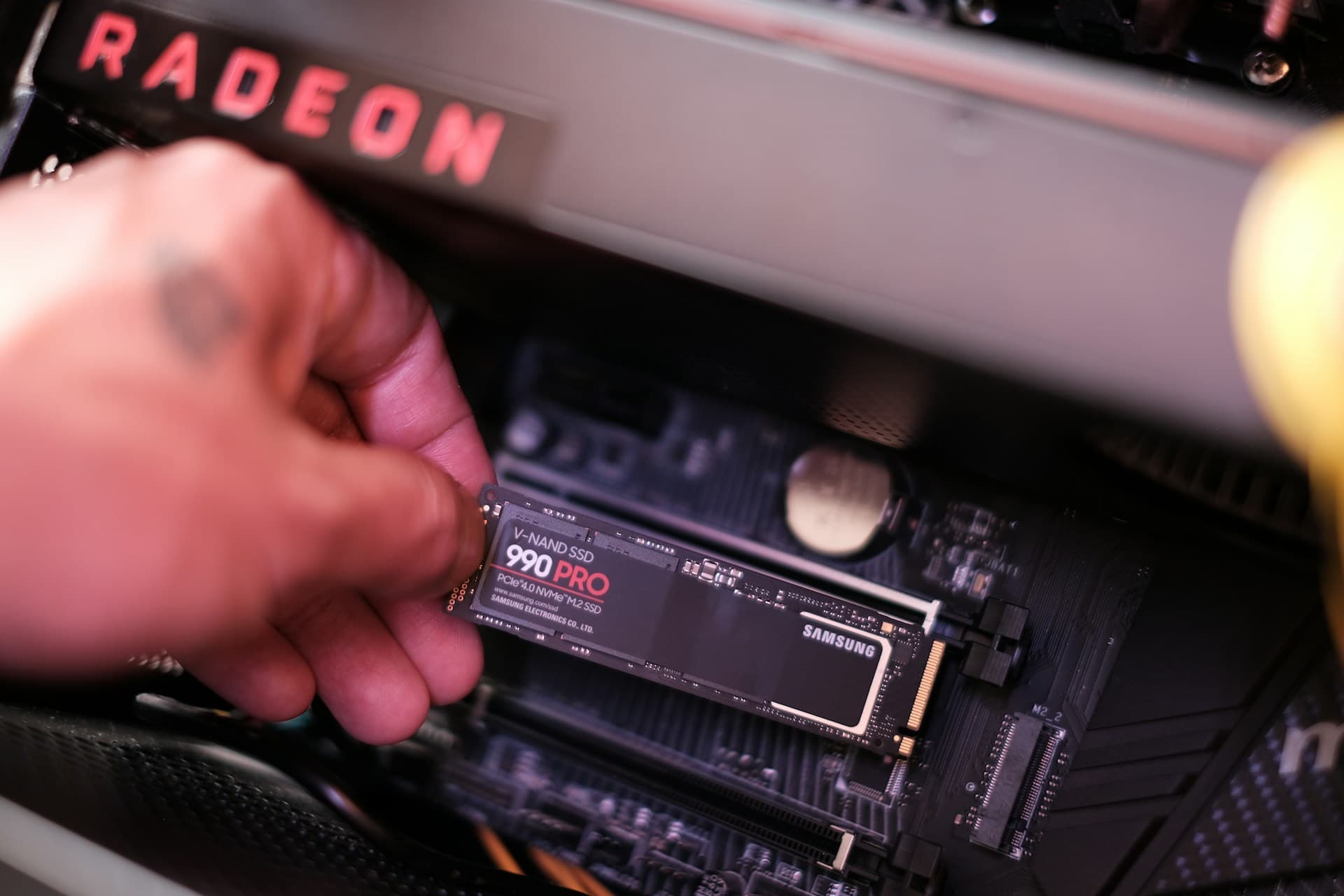
An SSD upgrade is the most impactful hardware change you can make to an older PC — not because of a single benchmark, but because storage speed affects every interaction you have with the machine. Boot time on a mechanical hard drive typically runs 85–120 seconds from pressing the power button to a usable desktop. On a modern NVMe SSD, the same machine boots in under 10 seconds (Tom's Hardware SSD vs HDD benchmark comparison). Applications that took 10–15 seconds to open now launch in under 2. File operations — saving, opening, indexing — that used to cause multi-second freezes become instant.
The reason the improvement feels so dramatic is that HDDs have a mechanical read/write head that physically moves across a spinning platter to find data. Under load, that head is constantly jumping between locations, and the drive shows 100% utilization not because you're doing something intensive, but because it simply can't keep up with the queue. The moment I replaced an HDD with an NVMe in an old Dell Optiplex, the boot screen literally disappeared before I expected it — I thought something had gone wrong until I saw the desktop. An SSD has no moving parts — reads and writes happen electronically and in parallel.
What an SSD does not fix: multitasking slowdowns from insufficient RAM, browser tabs that reload when you switch back to them, or the brief "Not Responding" flash when switching between heavy apps. Those are RAM problems. An SSD also won't meaningfully affect gaming FPS — that's a GPU issue. If your slow PC symptoms are specifically about boot time, app launch speed, and general system responsiveness, the SSD is your answer. If the symptoms are about tab reloading and multitasking, read the next section.
For a deeper look at SSD types (NVMe vs SATA, Gen 3 vs Gen 4) and whether your machine has an M.2 slot, see the SSD upgrade guide.
4. What RAM Actually Fixes
RAM is your system's working memory — everything that's currently running lives there. When it fills up, Windows starts using your drive as overflow (the "paging file"), and performance degrades fast. The specific symptoms are: browser tabs that go blank and reload when you switch back to them, a brief "Not Responding" pause when switching between two heavy apps, and half-second stutters when a game is loading a new area into memory. These are all signs that your system is actively swapping data in and out of storage because RAM ran out.
In 2026, 8GB is genuinely insufficient for everyday use (Microsoft's Windows 11 requirements documentation lists 4GB as the bare minimum, and real-world usage pushes well past that). Chrome with a handful of tabs, Discord, and Spotify can push a modern Windows install to 85–90% utilization with nothing unusual open. Upgrading from 8GB to 16GB typically drops that down to 50–60% — which means there's headroom to open applications without anything being evicted to disk. The first time you switch from a Chrome window to Photoshop after a RAM upgrade, the difference is obvious — no pause, no beachball, the app is just there.
RAM paging on an HDD is the worst-case scenario
If you're on a mechanical drive with low RAM, Windows is swapping to a drive that's already maxed out. This combination causes multi-second freezes that feel severe — and look identical to a virus or failing hardware. It's just a storage bottleneck compounded by memory pressure. Fix the drive first.
What RAM does not fix: boot time, application launch speed, or storage I/O. Adding 32GB of RAM to a machine with an HDD will not make it boot faster or open apps quicker — those are entirely determined by storage speed. RAM also won't improve FPS in most games unless you're below the minimum threshold for that game (typically 16GB for modern titles). For the details on how much RAM makes sense for your use case, see how much RAM do I need.
5. When You Need Both
If you're on an HDD with less than 8GB of RAM, both upgrades are genuinely necessary — you're just deciding which order to do them in. The SSD still comes first. The reason is that on an HDD, every symptom of low RAM is dramatically amplified: Windows paging to a slow spinning disk instead of a fast SSD makes the freezes far worse than they would be otherwise. Installing an SSD first makes the paging tolerable, and in some cases the machine will feel acceptable enough that you can evaluate whether a RAM upgrade is still urgent.
Once the SSD is in, check Task Manager again. If your Memory tab is consistently above 85%, add RAM next. If it's sitting in the 60–75% range, you've bought yourself time — the SSD alone may have addressed most of the symptoms you were experiencing.
The case where RAM should go first is simple: you already have an SSD, and your Memory tab is running above 85% during normal use. There is no other situation where RAM beats SSD in upgrade priority for a general-purpose machine. If gaming is your primary concern, the ordering logic shifts — see the RAM vs GPU comparison for that.
6. Common Mistakes
Buying RAM when the disk is showing 100% utilization
This is the most common one I see. The PC feels slow across everything, someone assumes it needs more memory, they add 16GB — and nothing changes. Because the problem was never RAM. Open Task Manager and check the Disk tab before deciding anything. If it's at 100%, you need an SSD. Full stop.
Adding an SSD to fix tab reloading and multitasking freezes
If your machine already has an SSD and you're still getting browser tabs that go blank when you switch back to them, the SSD is not the problem. Tab reloading is a RAM symptom — it happens when the browser evicts background tabs from memory because there's no room left. Another SSD (or a faster one) won't help. Check the Memory tab in Task Manager; if it's above 85%, add RAM.
Skipping the Task Manager check entirely and guessing
Two minutes in Task Manager tells you exactly which resource is being bottlenecked. Most people skip this and go with gut feel — "it seems slow so probably needs more RAM" — which leads to buying the wrong part. The Disk tab and Memory tab in the Performance section give you the answer directly. It's free, it takes under a minute, and it prevents spending $60–$100 on an upgrade that won't change anything.
Frequently Asked Questions
I'm on an HDD with only 4GB of RAM — should I get an SSD or more RAM first?
SSD first, without question. At 4GB, your RAM is genuinely insufficient, but the HDD is causing far more pain right now. Every time Windows runs low on RAM, it compensates by using the HDD as swap space — and when your storage is already a bottleneck, that combination is what causes the multi-second freezes. Fix the disk first. Once you have an SSD, reassess: if the PC still feels sluggish under multitasking, then add RAM.
Does upgrading to an SSD affect RAM usage at all?
Not directly — SSD and RAM are separate resources. But there is one indirect effect worth knowing: Windows uses your drive as a paging file (virtual memory) when RAM fills up. On an HDD, that paging is so slow it causes noticeable freezes. On an SSD, paging is fast enough that the symptom nearly disappears, even if your RAM utilization stays high. So an SSD can make a low-RAM machine feel tolerable — but it doesn't give you more RAM. You'll still benefit from a RAM upgrade eventually if you're consistently above 85% utilization.
My PC already has an SSD. Task Manager shows Memory at around 75% when I'm working normally. Should I upgrade RAM?
At 75%, you're not at the threshold yet. The point where RAM becomes a real problem is consistent usage above 85% — that's when Windows starts actively swapping and you feel it as app freezes or tab reloading. At 75%, you have headroom. I'd wait until that number is regularly hitting 85–90% before spending money. If it does reach that range, upgrading from 8GB to 16GB typically drops utilization to around 50–60% under normal multitasking.
Will adding RAM help my PC boot faster?
No. Boot time is almost entirely determined by your storage drive speed. If you're on an HDD, boot times of 85–120 seconds are normal — and no amount of RAM changes that. An NVMe SSD cuts the same boot to under 10 seconds. If your PC is slow to start up, the answer is an SSD, not more RAM.
What to Read Next
- SSD Upgrade Guide — covers NVMe vs SATA, how to check if your board has an M.2 slot, and whether cloning or reinstalling Windows is the better move.
- RAM Upgrade Guide — how to check compatibility, identify DDR4 vs DDR5, and avoid the common mistake of mixing RAM kits.
- What Does Upgrading RAM Actually Do? — a detailed breakdown of what specifically changes in day-to-day use after a RAM upgrade, with before/after descriptions per scenario.
- What Should I Upgrade on My PC? — if you're not certain which component is your real bottleneck, this guide walks through the full diagnostic process with Task Manager, CPU-Z, and MSI Afterburner.