How to Speed Up a Slow PCFix It with Software Before You Spend Anything on Hardware
What This Guide Covers
Before I ever recommend buying a part, I ask one question: have you checked the Startup tab in Task Manager? I've fixed slow PCs in under two minutes by disabling six programs that were all launching at boot — Spotify, Steam, OneDrive, two Adobe updaters, and something called "GameBooster" that was actively making things worse. The owner had been living with a two-minute boot time for months and was ready to spend $150 on more RAM.
Software problems mimic hardware problems almost perfectly. A machine running background malware looks exactly like one that needs a CPU upgrade. A drive that's 97% full produces the exact same freezing symptom as insufficient RAM. Thermal throttling feels indistinguishable from an underpowered processor. Before you spend anything, work through the six steps below. Working through all six steps takes about 45–90 minutes the first time — mostly waiting on scans — and the first three steps alone take under 10 minutes.
1. Why Software Fixes Come First
I've seen a $300 GPU installed on a machine whose real problem was a malware process eating 40% of CPU time around the clock. The GPU did nothing for overall slowness — because the bottleneck was never the graphics card. The new card sat there doing its job while the CPU was still pegged at 80% idle, and the owner concluded he must need even more upgrades.
Hardware upgrades fix hardware problems. They do not fix software problems. A new SSD won't help if Windows Update is running a background task that's grinding your CPU. More RAM won't help if an adware process is silently consuming 3GB of it. Driver corruption can make a perfectly capable GPU look like it's failing. Run the six steps below first — they're all free, and any one of them might be the entire answer.
2. Step 1 — Check Task Manager for the Real Culprit
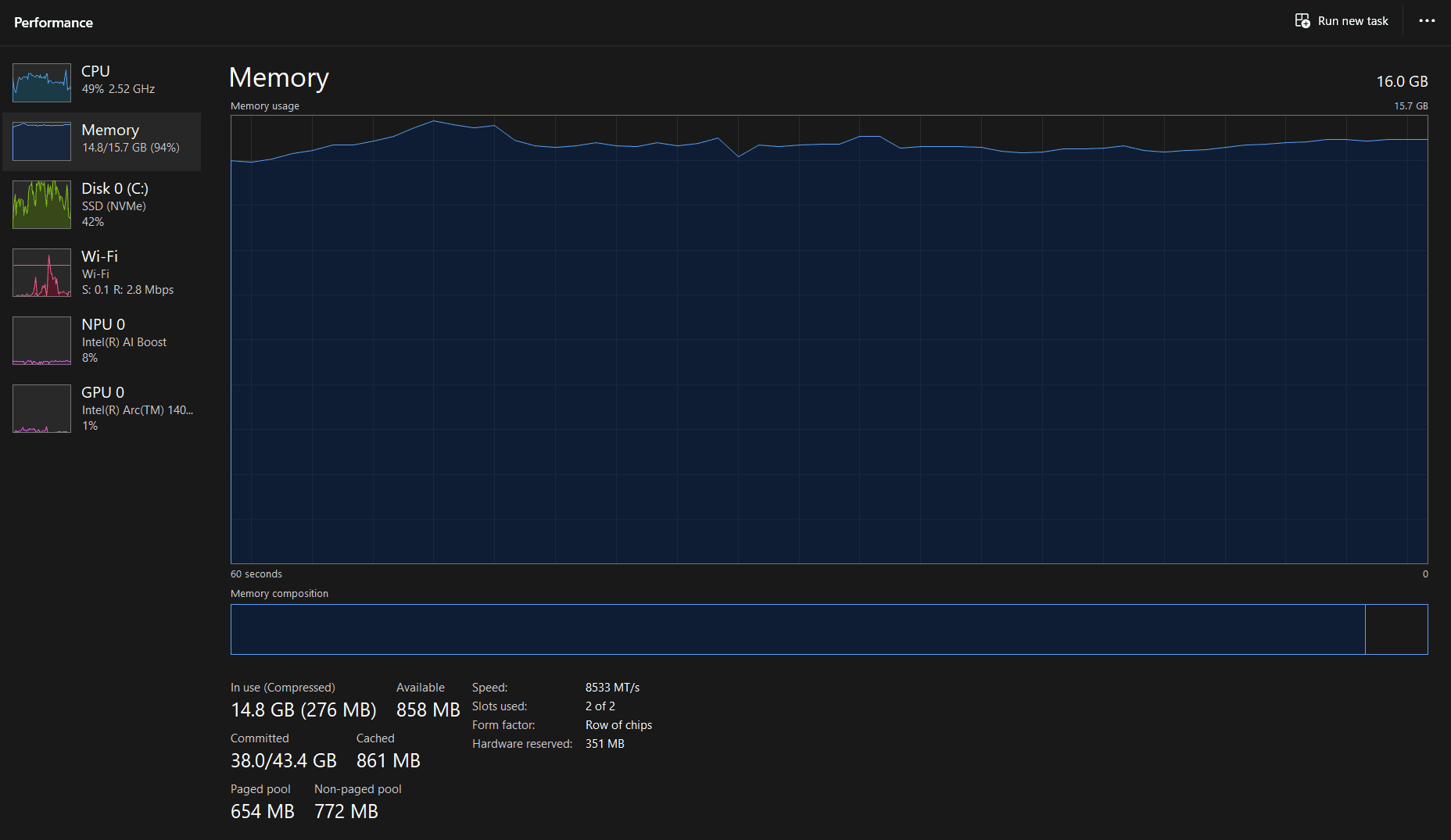
Press Ctrl + Shift + Esc to open Task Manager. Click the Processes tab if it isn't already showing. Click the CPU column header to sort processes from highest to lowest CPU usage.
Look for any process using 30% or more that you don't recognise. Common legitimate processes that run temporarily include "Windows Update" (MoUsoCoreWorker.exe), your antivirus scanner, or a game launcher updating itself. These are fine — they'll finish. What you're looking for is something unrecognised sitting at high CPU consistently, every time you open Task Manager.
After sorting by CPU, do the same sort by Memory. A process holding 1.5–2GB of RAM while doing nothing visible is a red flag. Right-click anything suspicious and select "Search online" — Windows will search for the process name and you'll quickly find out if it's malware, a bloatware service, or something that's safe to disable.
If you find something clearly misbehaving here, you may not need to do anything else on this list. End the task, identify where it's launching from, and remove it. That's the entire fix.
3. Step 2 — Disable Startup Programs
Still in Task Manager: click the Startup tab. This shows every program that launches automatically when you turn on your PC. Sort by "Startup impact" — anything marked High is consuming measurable CPU and disk time during every boot.
Right-click and disable anything you don't need open immediately on startup. The most common offenders: Spotify, Steam, Discord, OneDrive, Microsoft Teams, Adobe Creative Cloud, Epic Games Launcher, Razer Synapse, and whatever your GPU software (GeForce Experience, AMD Software) is set to do at boot. Disabling these doesn't uninstall them — they still open when you click them. They just stop auto-launching.
Boot time can drop from over two minutes to under 30 seconds just from this step on a machine that had never had its startup list cleaned up. I've done this for people who thought they needed an SSD and they genuinely didn't — the HDD boot was being extended by six or seven apps all fighting for disk access simultaneously at startup.
Don't disable your antivirus
Windows Defender or any third-party antivirus should stay enabled at startup. Disabling it leaves your machine unprotected during the period most malware tries to install itself — right after boot, before you've opened anything.
4. Step 3 — Free Up Disk Space
Open File Explorer and right-click your C: drive, then select Properties. If the free space shown is below 15% of the total drive size, this is directly causing slowdowns.
Windows uses free space on your boot drive as virtual memory — an overflow area that expands when your RAM fills up. When that free space drops below 10%, virtual memory can't expand. Windows then starts thrashing: writing and reading constantly to find anywhere to temporarily store data, which drives your disk to 100% utilization even during tasks that should be simple. Opening a browser tab can trigger a multi-second freeze on a drive that's almost full.
To reclaim space: uninstall programs you haven't opened in the past 90 days (Settings → Apps), empty your Downloads folder (this is almost always full of gigabytes of installers), and run the built-in Disk Cleanup tool — search for it in Start, select your C: drive, and tick everything including "Previous Windows installations" if it appears. That one option alone can recover 10–20GB on machines that have been through a Windows upgrade.
5. Step 4 — Run a Malware Scan
Malware running in the background steals CPU and RAM without showing up obviously. The machine just feels sluggish all the time, with no single identifiable cause in Task Manager — because the malware is designed to stay under the radar while still consuming resources.
Start with Windows Defender: open Windows Security → Virus & threat protection → Scan options → Full scan. This takes 20–40 minutes but checks everything on the drive. If Defender comes back clean but the PC is still slow, run a second opinion scan with the Malwarebytes free scanner. Malwarebytes catches a different category of threats — particularly adware and PUPs (potentially unwanted programs) that Defender sometimes ignores.
If either scan finds something and removes it, restart your PC immediately and check Task Manager again. In my experience, a clean scan on a previously infected machine immediately shows in Task Manager — CPU usage that was sitting at 40–50% idle drops back to 5–10% after the restart.
6. Step 5 — Update Your GPU Drivers
Outdated GPU drivers are the most common cause of sudden FPS drops and visual stutters that show up out of nowhere. If your PC was running fine three months ago and now games are choppy or the desktop feels janky when scrolling, a driver update is the first thing to check — not hardware.
For NVIDIA: visit nvidia.com/en-us/drivers, enter your GPU model, and install the latest Game Ready driver. For AMD: visit amd.com/en/support/download/drivers and install the latest Adrenalin release. Both will ask you to restart — do it before testing anything.
For everything else — chipset drivers, audio, network, USB controllers — run Windows Update (Settings → Windows Update → Check for updates → View optional updates). Optional updates often include driver updates that the system won't install automatically. These matter more than people realise; an outdated chipset driver can cause random system freezes that look like failing RAM.
7. Step 6 — Check Temperatures with HWMonitor
This is the most overlooked fix on this list. Thermal throttling produces symptoms that are almost identical to an underpowered CPU — everything feels slow, apps lag, gaming performance tanks — but the processor itself is fine. It's simply running at reduced clock speeds to protect itself from heat damage.
Download HWMonitor (free, from cpuid.com) and open it. Use your PC normally for 10–15 minutes — open your usual apps, do whatever you normally do when it feels slow. Then look at the "Max" column in HWMonitor for your CPU package temperature. Above 95°C on Intel, or above 90°C on most AMD Ryzen chips, and you're thermal throttling.
The fix costs under $10 and about 30 minutes: clean dust from every fan and heatsink with a can of compressed air, and replace the thermal paste between the CPU and its cooler. Thermal paste dries out over 3–4 years and loses its ability to transfer heat. I had a machine running at 100% fan speed during YouTube playback for over a month before realising the paste had dried out completely — reapplying it dropped load temperatures by 19°C and the fans went near-silent.
8. Common Mistakes That Cost People Real Money
Mistake 1: Buying hardware before checking software
The most expensive mistake is ordering parts before doing any diagnosis. I've seen someone install a new GPU into a machine that was slow because Windows Update was mid-install in the background — eating both CPU and disk. The GPU did nothing. If you haven't opened Task Manager and checked what's actually running, you don't know what's causing the slowness, and any upgrade is a guess.
Mistake 2: Assuming slowness means the PC needs more RAM
Slow app launches, long boot times, and freezing when switching windows all feel like RAM problems. They're also the exact same symptoms of a mechanical hard drive (HDD) running at 100% utilisation, a drive that's nearly full, and a machine with too many startup programs. Check the Disk tab in Task Manager's Performance section — if it's sitting at 100% while you open Chrome, that's a storage problem, not a memory problem. Adding RAM to a disk-bottlenecked machine produces no improvement.
Mistake 3: Skipping the thermal check because the PC isn't gaming
Thermal throttling happens on office PCs too — any workload that sustains high CPU usage long enough will trigger it on a machine with dried-out paste or clogged fans. Exporting a spreadsheet, running a video call with screen share, or compiling code can all sustain enough CPU load to push temperatures past the throttle threshold. The result feels exactly like the CPU is too slow for the task. It isn't — it's just too hot.
Mistake 4: Running a "quick scan" and calling it done
Windows Defender's quick scan checks the most common infection locations, but malware increasingly hides in less obvious places. If you're checking for malware as a potential cause of slowness, run a full scan — it takes longer but scans the entire drive. Then run Malwarebytes as a second opinion. Two consecutive clean scans from different tools is actually meaningful. One quick scan from one tool is not.
9. When Hardware Is Actually the Problem
If you've worked through all six steps above and the PC is still genuinely slow, the problem is hardware. At that point, you're not guessing — you've already ruled out the software causes, and the remaining options are specific and diagnosable.
The Task Manager Performance tab is still your starting point. The Disk tab running at 100% constantly on a mechanical drive means an SSD upgrade will transform the machine. The Memory tab sitting at 85–90% under normal use means more RAM is the answer. A CPU pegged at 90%+ with temperatures that are fine (not throttling) means the processor itself is the bottleneck.
I've had two machines in the past year where working through this entire list changed nothing — one was a six-year-old laptop with a HDD running at 100% every time Chrome opened a new tab, and one was a desktop with 8GB RAM getting used by a video editing habit the original owner had developed after buying it. In both cases Task Manager told the story clearly once everything else was ruled out.
For a step-by-step breakdown of which symptom points to which upgrade — and in what order to tackle them — the what to upgrade first guide covers the full diagnostic flow.
Frequently Asked Questions
Does restarting my PC actually speed it up?
Yes. A restart clears RAM that apps haven't properly released, flushes the Windows page file, and applies any pending Windows Update patches that were waiting to install. If your PC feels sluggish after being on for several days, a restart alone can recover a noticeable amount of performance — Task Manager often shows 20–30% lower memory utilisation right after a fresh boot compared to a machine that's been on for four days.
Can a full hard drive really make a PC slow?
Yes, and more severely than most people expect. Windows uses free space on the boot drive as virtual memory — an overflow area when RAM fills up. When free space drops below 10%, virtual memory can't expand, and the system starts thrashing: constantly writing and reading to find anywhere to put data. The Disk tab in Task Manager will show 100% utilisation even during light tasks. Freeing up space fixes this immediately without any hardware change.
How do I know if malware is slowing down my PC?
Open Task Manager (Ctrl+Shift+Esc) and sort the Processes tab by CPU. If you see a process you don't recognise sitting at 20–40% CPU with no clear reason — not a Windows Update, not a scan, nothing you started — that's the tell. Legitimate Windows processes rarely sustain high CPU usage outside of specific tasks. Run a Windows Defender full scan, and follow up with a Malwarebytes free scan if Defender comes back clean.
Will clearing browser cache speed up my PC?
Only marginally, and only in one narrow situation: a very large browser cache (several gigabytes) on a nearly-full mechanical hard drive can slow down browser launch times. On an SSD with reasonable free space, clearing the cache makes almost no measurable difference to overall system speed. It's worth doing as part of a general cleanup, but it's not a meaningful fix for a genuinely slow machine — don't let it be the extent of your troubleshooting.
I've tried everything on this list and my PC is still slow. What now?
At that point the problem is almost certainly hardware. Open Task Manager's Performance tab and check each graph under load: Disk at 100% on an HDD means an SSD upgrade; Memory at 85%+ under normal use means more RAM; CPU pegged at 90%+ with temperatures under control means the processor is the bottleneck. The what to upgrade first guide walks through exactly what each symptom means and which upgrade fixes it.
What to Read Next
- What to upgrade first on your PC — if software fixes haven't solved the problem, this guide matches your specific symptoms to the right hardware upgrade, in the right order.
- What should I upgrade on my PC? — a deeper diagnostic walkthrough using Task Manager, CPU-Z, and HWMonitor to pinpoint exactly which component is your bottleneck before you spend anything.
- How to fix low FPS in games — if gaming performance specifically is the issue, this covers the driver and settings fixes to try before concluding you need a new GPU.
- How to upgrade an old PC — if your machine is 5+ years old, this covers which upgrades are still worth it on older hardware and where the age threshold is for giving up and buying new.